Your device
Reading the PDF, copying pages, building the new file and starting the download all happen on your phone or computer.
A plain walk through what happens from the moment you open a tool to the moment your new PDF is saved on your device.

The same steps apply to every tool: Merge PDF, Split PDF, PDF to Word, PDF to Excel, Compress PDF, Watermark PDF, OCR PDF, Protect & Unlock PDF, Sign PDF, PDF to JPG, Organize PDF and Redact PDF.
PDF by Toolcloak gives you two page-level PDF tools, Merge PDF and Split PDF. Both run inside your web browser. Nothing is installed, no account is created and your documents are not sent to our server. This page explains each step so you can see exactly what is going on.
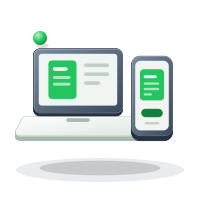
Reading the PDF, copying pages, building the new file and starting the download all happen on your phone or computer.
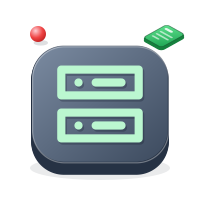
It only delivers the page, its styling and the tool code, the same way any website does. It never receives your PDF.
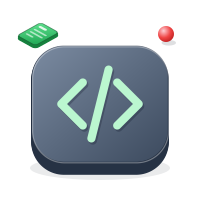
The PDF engine, an open-source library called pdf-lib, is served from our own website the first time you use a tool. It is code that runs on your device. Your documents are not sent anywhere.
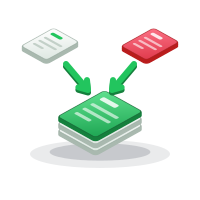
A PDF is a container of pages. Each page holds its own instructions for drawing text, images and shapes. Merging and splitting only move whole pages from one container to another, so nothing has to be redrawn. That is why quality stays the same, why a page keeps its size and orientation, and why the work is usually finished in a few seconds.
Editing the words inside a page is a different job, because a PDF does not flow text like a word-processing file. These tools are built for whole pages, and the pages on this site explain the limits plainly.
You do not have to take our word for it. On a computer, open your browser developer tools and look at the Network tab, then merge or split a file. You will see the page, its styles and the tool code load. You will not see your PDF being sent out.
Another simple test is to load a tool, switch your device to airplane mode and run the job. Once the page and its code have loaded, the merge or split works without a connection.
Ready to start? Open Merge PDF to join several files, or Split PDF to keep only certain pages. If you need to do both, split first and merge the extracts afterwards. More background is on the home page, and the About page explains who we are and how we plan to grow.
No. There is no sign-up, login or email address required.
No document data is kept. The only thing remembered on your device is your light or dark theme choice.
Yes. The layout is single-column with large controls, and it works in current mobile browsers.
The PDF engine is loaded on demand so the page itself stays light. After that first load the tools respond immediately.
PDF by Toolcloak is part of toolcloak.com, and image tasks live at image.toolcloak.com.